Use ChatGPT for personal finance with Brixa
Connect Brixa to ChatGPT and ask about your real spending, budgets and goals, from banks in the US, Canada or Europe. It takes a few minutes, it only reads, and you can switch it off at any time.
Before you start
- Brixa on your iPhone, with a bank connected. Brixa connects banks through Plaid in the US and Canada and through Enable Banking in Europe. ChatGPT reads from Brixa, never from your bank.
- An active Brixa free trial or subscription. The connector reads your Brixa, so it works while your access is active.
- ChatGPT in a browser at chatgpt.com. You add Brixa there once.
The address you will paste
https://usebrixa.com/api/mcpAdd Brixa to ChatGPT
- Go to
chatgpt.com/pluginsand select Add. - Choose Add custom MCP server.
- Name it Brixa and add a short description, for example “My budget from Brixa, read-only”.
- Under Connection, choose a public endpoint and paste
https://usebrixa.com/api/mcp. - For authentication, choose OAuth: you sign in to Brixa yourself, on Brixa’s own page.
- ChatGPT shows a warning about custom MCP servers. Read it, then select I understand and want to continue.
- Select Create as a plugin, then Connect Brixa.
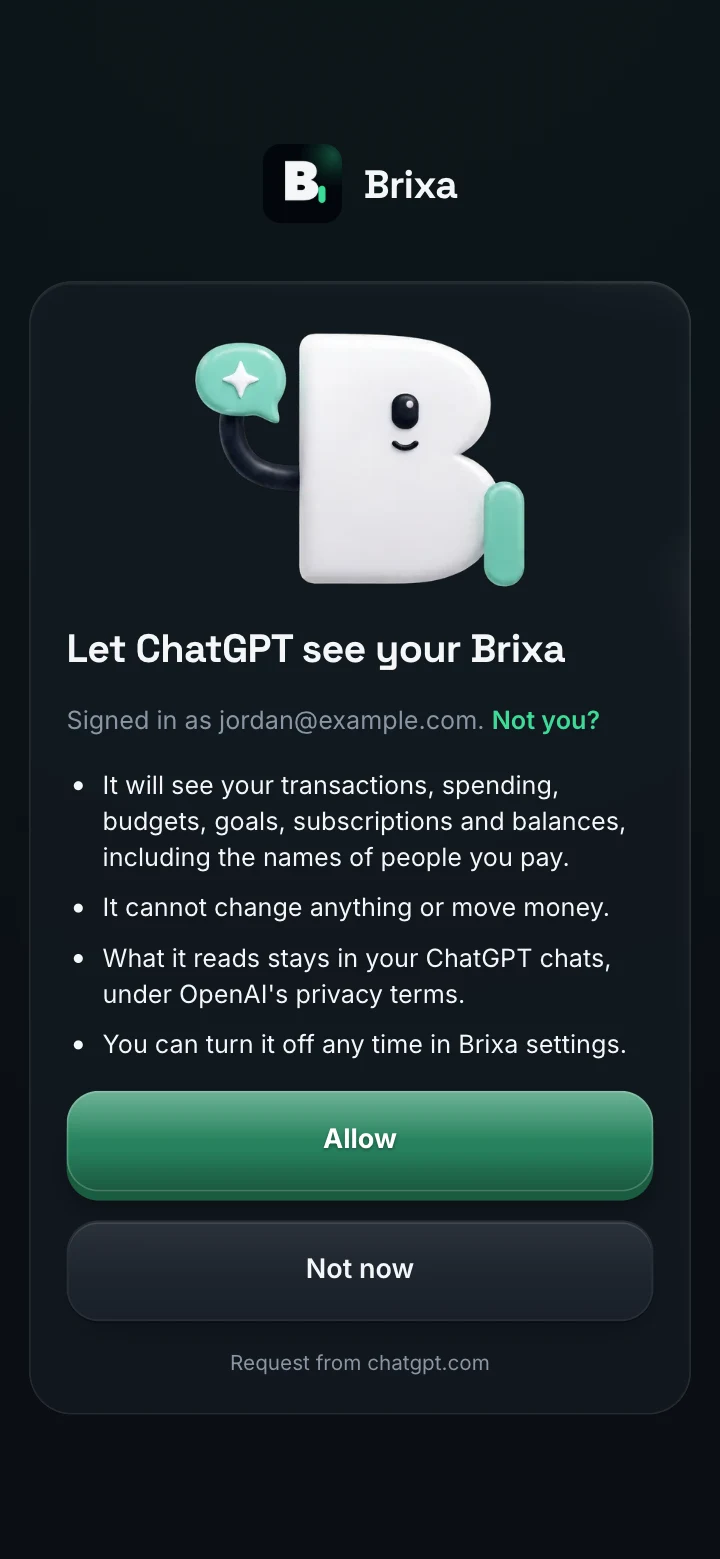
- A usebrixa.com page opens. Sign in with the email or Google account you use for Brixa, read what ChatGPT will be able to see, and select Allow.
- Start a new chat, type
@, pick Brixa, and ask your question.
Steps checked on October 28, 2026. ChatGPT’s menus change from time to time; if yours look different, OpenAI’s help center has the current way to add a custom MCP server.
Three questions to ask first
“Where did my money go last month?”
Spending by category, how it compares with the month before, and what is not counted as spending, such as money moved to savings.
“How much did I spend on Uber this year?”
One total across every account and card, with refunds taken off and a figure for each month.
“Which budgets am I over this month?”
Each budget against what you have spent so far, and whether you are ahead of the month or behind it.
Is it safe to connect ChatGPT to your finances?
- It only reads. ChatGPT can read your Brixa. It cannot change anything in it and cannot move money.
- No passwords change hands. You sign in on usebrixa.com, never inside ChatGPT. ChatGPT gets a key that can only read, not your Brixa password, and it never sees your bank login.
- You see the list first. Before anything is shared, Brixa’s page says what ChatGPT will see: transactions, spending, budgets, goals, subscriptions and balances, including the names of people you pay. If you exclude an account in Brixa, ChatGPT does not see it either.
- The chat is ChatGPT’s. What ChatGPT reads becomes part of that conversation, under OpenAI’s privacy terms. If you would rather not keep a conversation, delete it in ChatGPT.
- Answers come from your numbers. Every total is worked out by Brixa from your categorized transactions, and Brixa tells ChatGPT how fresh each bank’s data is. Anything about the future is a what-if from your own history, not a promise and not investment advice.
- Off in one step. Disconnect in Brixa and ChatGPT’s access stops at once.
For the wider picture, read how to give AI access to your finances safely.
Brixa and ChatGPT Finances
ChatGPT Finances is OpenAI’s own finance feature inside ChatGPT, and Brixa is not part of it. The Brixa connector does something else: it brings the Brixa you already use into ChatGPT, with the banks you connected in the US, Canada or Europe and your own categories, budgets and goals. It works in Claude too, so the same numbers are there in whichever assistant you open.
If something does not work
- There is no Add custom MCP server option. Check that you are on chatgpt.com in a browser. What your ChatGPT account offers is set by OpenAI, so if the option is missing, search OpenAI’s help center for custom MCP servers.
- The page says Brixa Pro is needed. Your Brixa free trial or subscription is not active. Start or renew it in the Brixa app, then connect again from ChatGPT.
- The page says That took a while. For your security, the sign-in expires after 10 minutes. Go back to ChatGPT and connect again.
- ChatGPT answers without Brixa. Type @ and pick Brixa, or name it in the question: “Using Brixa, where did my money go last month?”
- The numbers look out of date. Answers say when each bank last synced. If a bank needs reconnecting, reconnect it in the Brixa app.
How to disconnect
- In Brixa. Sign in at usebrixa.com/app/settings, open Connected AI, and choose Disconnect next to ChatGPT. Access stops at once.
- In ChatGPT. You can also remove Brixa from your plugins. Disconnecting in Brixa is what cuts off access, so do that too.
Questions people ask
With Brixa, ChatGPT gets read-only access through a sign-in on usebrixa.com. It never sees your bank login or your Brixa password, it cannot move money, and its access ends the moment you disconnect. Whatever you use, keep bank logins, one-time codes and full statements out of the chat.
No. ChatGPT Finances is OpenAI’s own feature. The Brixa connector brings your Brixa into ChatGPT: the banks you connected in Brixa in the US, Canada or Europe, and your own categories, budgets and goals. It works in Claude too.
Brixa connects banks in the US and Canada through Plaid, and banks in Europe through Enable Banking. ChatGPT never connects to your bank itself: it reads from Brixa, read-only.
The totals come from Brixa, not from ChatGPT doing sums, and Brixa tells it which days and accounts each figure covers. When an answer matters, ask which dates it used, and treat anything about the future as a what-if rather than advice.
The connector is included in Brixa and works while your free trial or subscription is active. What ChatGPT itself offers depends on your ChatGPT account.
Yes. Brixa works in Claude with the same read-only access (see the Claude guide), and each assistant shows up separately in Brixa under Settings, Connected AI, so you can disconnect one without touching the other.
Get Brixa, then ask ChatGPT
Brixa is an iPhone app. Connect your banks in it first, then add it to ChatGPT with the steps above. Free to try.